
Are you considering switching from Spotify to YouTube Music? As of the second quarter of 2026, Spotify had reached 777 million monthly active users. However, as more music platforms become available, some users are considering moving to YouTube Music. The playlists, saved songs, and albums they have collected over the years can make switching platforms difficult.
Are you considering switching from Spotify to YouTube Music? As of the second quarter of 2026, Spotify had reached 777 million monthly active users. However, as more music platforms become available, some users are considering moving to YouTube Music. The playlists, saved songs, and albums they have collected over the years can make switching platforms difficult.
Fortunately, switching music platforms does not mean rebuilding every playlist song by song. You can transfer Spotify playlists to YouTube Music using an online transfer tool, manual searches, or a CSV file. This guide explains three methods available in 2026 and shows you how to check for missing tracks and incorrect matches after the transfer. If you plan to use YouTube Music long term, you can buy a YouTube Music subscription on GamsGo for as low as $2.99 per month, which is more affordable than subscribing at the regular price on the official website.
Why Transfer from Spotify to YouTube Music?
YouTube Music connects its music library with content from YouTube. In addition to official song releases, you can find music videos, live performances, covers, remixes, and other versions. If you often listen to content that is difficult to find on regular music streaming platforms, YouTube Music may be a suitable choice. A YouTube Music Premium subscription also provides ad-free listening, background play, and offline downloads.
Transferring your playlists lets you keep your existing music categories and most of your saved tracks without searching for and adding every song again in YouTube Music. You can also transfer only some playlists for a trial while keeping the original playlists on Spotify. You can then decide whether to switch platforms completely.
Note that transfer tools search for and add matching songs from the YouTube Music library. They do not transfer the actual audio files. Because the two platforms have different catalogs and song versions, some tracks may not match or may be replaced with another version. You should therefore check the results after the transfer.
Three Ways to Transfer Spotify Playlists to YouTube Music
There are three practical ways to complete a Spotify to YouTube playlist transfer. Automatic transfer tools are suitable for most users, while manual transfers and CSV files provide greater control.
Method 1: Use a Third-Party Transfer Tool
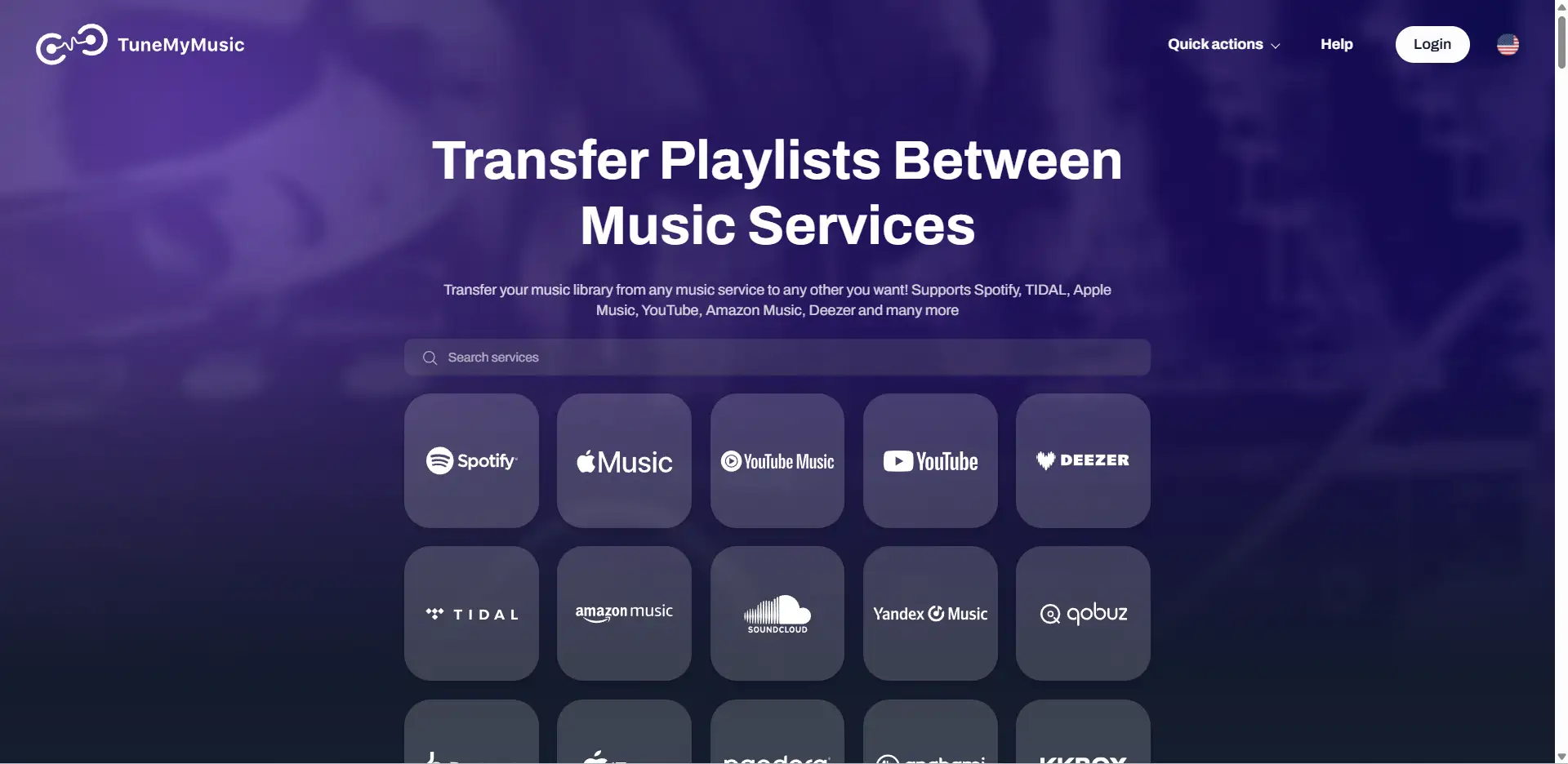
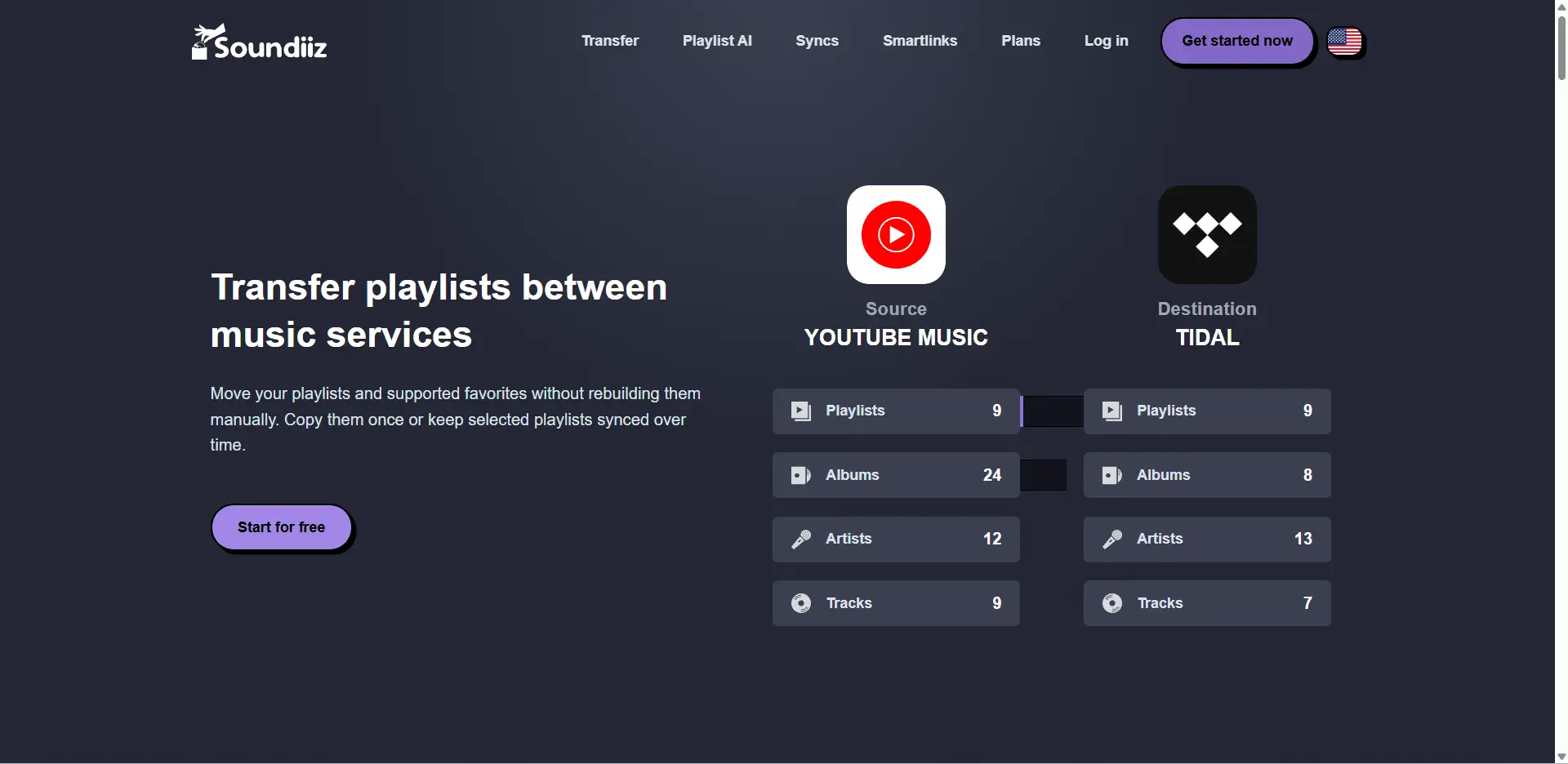
This is one of the fastest ways to transfer Spotify playlists to YouTube Music. Google’s official Help Center lists third-party transfer services such as TuneMyMusic and Soundiiz. In supported versions of the YouTube Music app, follow these five steps:
- Open YouTube Music, tap your profile icon, and select “Settings.”
- Select “Privacy & data,” then tap “Transfer playlists from other apps.”
- Select a transfer service such as TuneMyMusic or Soundiiz, then follow the instructions to connect your accounts.
- Set Spotify as the source platform and YouTube Music as the destination, then select the playlists or saved songs you want to copy.
- Start the transfer, wait for the service to match the songs, and check the results in YouTube Music.
You can also visit TuneMyMusic or Soundiiz directly in your browser instead of opening the service through the YouTube Music app. After the transfer, check the number of songs, track order, and playlist name. You should also look for missing songs, incorrect versions, and duplicate tracks. Because the two platforms do not have identical catalogs or song versions, some content may not match or may be replaced by a live recording, cover, or another version with the same title. If this happens, search for and add the correct song manually in YouTube Music.
Method 2: Transfer Songs Manually
A manual transfer is suitable for shorter playlists and users who want to verify each song version. This method does not require connecting both music accounts to a third-party service, but it takes more time. Follow these five steps:
- Open your Spotify playlist and create a new playlist in YouTube Music.
- Check the first song on Spotify, then search for it in YouTube Music using the song title and artist name.
- Check the album name, artist, and track length in the search results to confirm that it is the correct version.
- Add the correct version to the new playlist, then repeat the search, verification, and addition process for the remaining songs.
- After adding all the songs, rearrange them to match the original playlist and check for missing or duplicate tracks.
When you manually transfer songs from Spotify to YouTube, pay close attention to different versions of the same song. YouTube Music search results may show a re-recording, live version, cover, sped-up version, remix, or music video instead of the original recording from your Spotify playlist. Check the artist, album cover, release year, and track length before adding a song to avoid choosing the wrong version.
This method is most suitable for playlists containing 20 to 30 songs because searching for and checking each track is still manageable. If your playlist contains hundreds or thousands of songs, a manual transfer will take a long time, so an automatic transfer tool may be more suitable. You can also use a third-party tool for the bulk transfer and then manually check any missing or incorrectly matched tracks. This approach combines speed with accuracy.
Method 3: Use a CSV File
A CSV file creates a music list that is easy to save and transfer. It can contain details such as the song title, artist, album, playlist name, and Spotify link.
Spotify does not provide regular users with a direct button for exporting playlists as CSV files. Its account data download feature mainly provides files in JSON format. If you need a CSV file, you can use a third-party playlist management tool that supports playlist exports. Follow these five steps:
- Connect your Spotify account to a tool that supports playlist exports, then select the playlists or saved songs you want to back up.
- Export the selected music list as a CSV file and save the file to your device.
- Open a transfer service that supports file uploads and upload the exported CSV file.
- Set YouTube Music as the destination platform and check the song titles, artists, and album details recognized by the tool.
- Confirm the import, wait for the transfer to finish, and review the report of unmatched songs.
The CSV method is useful if you want to view or edit the song list before transferring it. You can check song details, remove unwanted content, or organize playlists in a spreadsheet while keeping a separate copy of your music list. Even if the automatic transfer fails, this file can help you find and organize your songs again.
Spotify vs. YouTube Music: Is It Worth Switching?
Spotify and YouTube Music both have large music libraries and offer personalized recommendations, playlists, offline listening, and paid ad-free plans. The right platform mainly depends on your listening habits. Here are the main differences between Spotify and YouTube Music:
| Feature | Spotify | YouTube Music |
|---|---|---|
| Music discovery | Offers a wide range of personalized playlists, Spotify Mixes, and social recommendations | Provides recommendations based on your activity on YouTube and YouTube Music |
| Music content | Offers official songs, albums, podcasts, and audiobooks in selected markets | Includes official songs, videos, covers, remixes, and live performances |
| Video content | Provides music videos for selected songs and content | Is closely connected to YouTube’s video library |
| Social features | Offers Blend, Jam, collaborative playlists, and sharing features | Supports playlist sharing and interactions through YouTube |
| Free listening | Offers an ad-supported free plan with feature restrictions | Offers an ad-supported free plan, with background play restricted on mobile devices |
| Premium features | Offers ad-free listening, offline downloads, playback controls, and lossless audio in supported regions | Offers ad-free listening, offline downloads, and background play |
| Podcasts | Allows users to listen to podcasts directly on Spotify | Offers podcasts, but Spotify podcast data cannot be imported through the playlist transfer feature |
| Best for | Users who value playlist recommendations, social listening, podcasts, and audiobooks | Users who enjoy music videos, rare versions, live performances, remixes, and other YouTube content |
If playlist recommendations, social features, podcasts, or audiobooks matter to you, Spotify may remain the better choice. If you frequently watch music videos or enjoy song versions mainly available on YouTube, YouTube Music may suit you better.
If you decide to continue using YouTube Music without ads, you can consider subscribing to a YouTube Premium plan through GamsGo at a price lower than the official website.
What Should You Check After Transferring Spotify Playlists?
Transfer tools usually match songs using details such as the song title, artist, album, and ISRC. Because Spotify and YouTube Music have different catalogs, regional licensing rules, and song versions, the transfer results may not be completely identical. Before deleting or changing anything on Spotify, check the following items:
- Missing songs: Some songs may not be available on YouTube Music because of licensing restrictions, regional limitations, removed versions, or incomplete metadata. Review the transfer report and manually search for any songs that were not transferred.
- Incorrect song versions: The tool may match a song with the same title but a different version. This could include a live recording, remaster, cover, instrumental, clean or explicit version, sped-up or slowed version, or a music video with different audio. If you find an incorrect match, replace it manually with the version you want.
- Playlist order: Check whether the songs appear in their original order. Most tools try to preserve the order, but the result may depend on the transfer service, playlist size, and transfer method.
- Duplicate songs: Do not submit the same transfer task again unless the first attempt failed. Repeating the transfer may create another playlist or add duplicate tracks.
- Liked Songs: If you want to transfer Spotify Liked Songs to YouTube Music, first check whether the tool supports saved or liked tracks. Some services treat Liked Songs as a separate collection instead of a regular playlist. After importing them, check whether the tracks appear under “Songs,” “Liked Music,” or a newly created playlist in YouTube Music.
- Playlist privacy: Check whether the imported playlist is private, unlisted, or public. If you do not want other users to find or view it, update its privacy setting.
- Future updates: A one-time transfer usually does not keep playlists synchronized across the two platforms. If you later add songs to Spotify, they will not automatically appear in YouTube Music unless you separately enable a synchronization feature supported by the transfer tool.
After completing these checks, keep the original Spotify playlists for a while. Confirm that the song count, versions, order, and privacy settings are correct in YouTube Music before changing your original music library. If you no longer plan to use the third-party transfer tool, open your Spotify and Google Account settings and revoke its access to avoid leaving unnecessary long-term authorization in place.
FAQ
Will My Original Spotify Playlists Be Deleted After the Transfer?
No. The transfer only creates copies in YouTube Music, while the original playlists remain on Spotify. Unless you enable a separate synchronization feature, changing or deleting the new playlists will not affect the originals.
Can the Original Song Order Be Preserved?
Usually, yes. Most tools try to preserve the original order, but missing songs, incorrect matches, or platform restrictions may affect the final arrangement. Check the entire playlist after the transfer.
Can I Transfer Spotify Playlists to YouTube Music for Free?
Yes. TuneMyMusic’s free plan currently supports up to 500 songs. Soundiiz lets you transfer one playlist at a time, with up to 200 songs per playlist. These limits may change, so check the latest terms before starting.
How Long Does It Take to Transfer a Spotify Playlist?
Short playlists usually take only a few minutes, while large music libraries take longer. The exact time depends on the number of songs, server status, account authorization, and matching results. Large transfers can usually run in the background.
Can I Transfer Spotify Podcasts to YouTube Music?
No. YouTube Music’s playlist transfer feature currently does not support importing or exporting podcasts. You need to search for them again on YouTube Music or YouTube. Some Spotify-exclusive content may not be available.
Related Articles
How to Get YouTube Premium Free 2026 (7 Proven Ways)
How to Get YouTube Premium Cheap with GamsGo (2026)
YouTube Music vs Spotify (2026): Which One Is Worth Paying For?