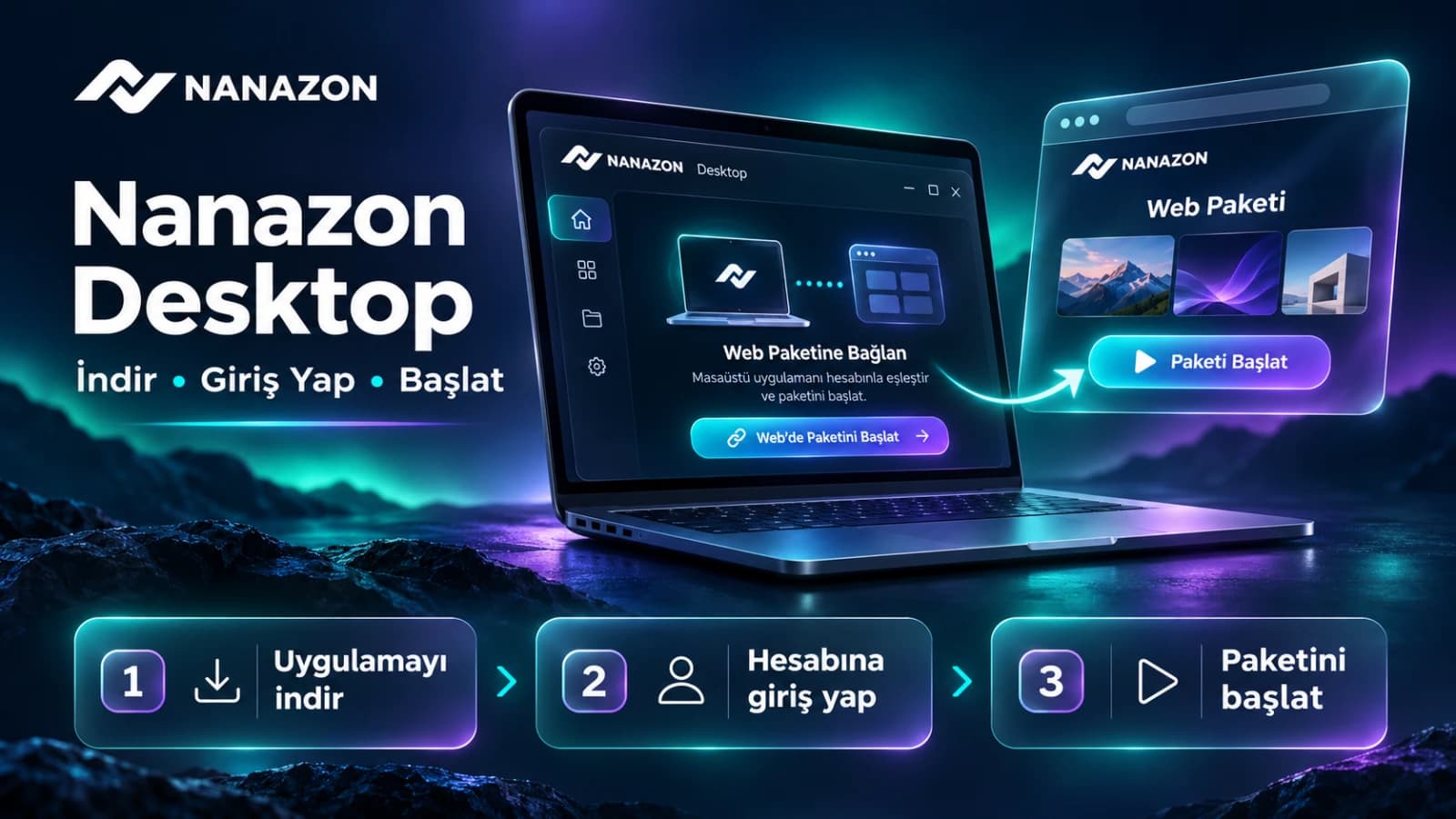
Download Nanazon Desktop, sign in with Google or email, and launch an active package from your web panel. Follow the homepage tutorial video and the current desktop sign-in screen.
Nanazon Desktop opens an active package from your web panel on your computer. Sign in to the Windows or macOS app with your Nanazon account, then launch the package from the Nanazon website. Use the same account on the website and in the desktop app.
Watch the walkthrough first
This is the tutorial video shown on the homepage. It demonstrates registration, the customer panel and launching a package through the app. Screens in the recording may change over time; the current Google sign-in option is explained in the steps below. The recording is not an English-language version.
Installation and launch, step by step
1. Download and install the app
Sign in on the Nanazon website. Open Application Files / Downloads in the customer panel and download the Windows or macOS installer for your computer. Complete installation and open Nanazon. Use the Nanazon panel as your download source.
2. Sign in to the same Nanazon account
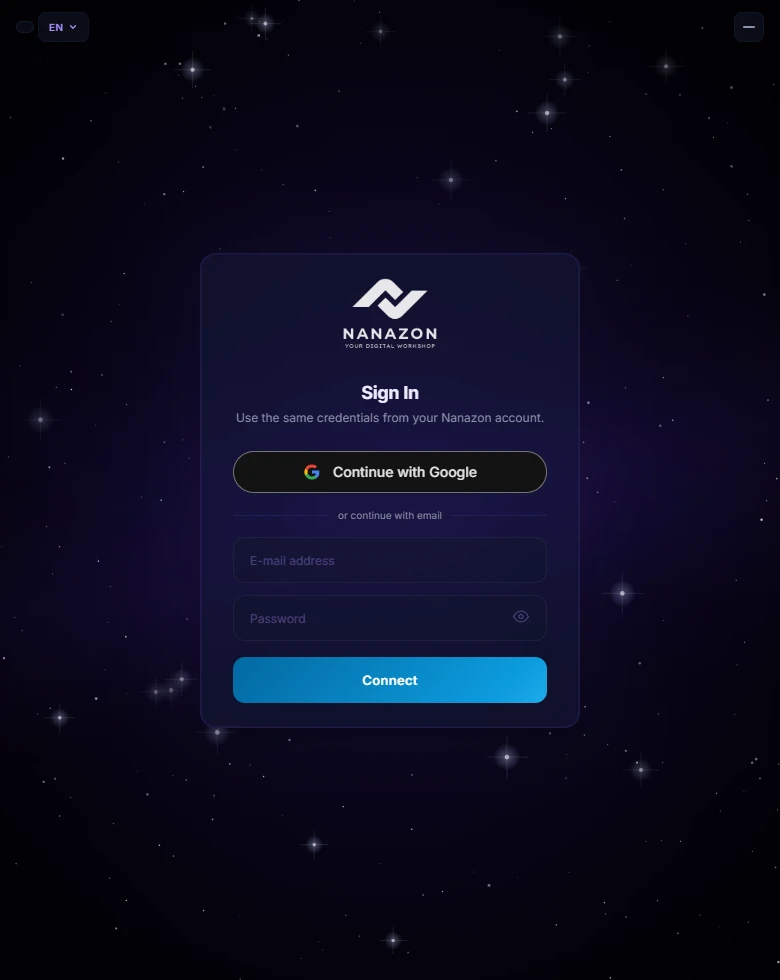
Choose Continue with Google in the app, or enter your email and password and click Connect. For Google sign-in, finish the process in the browser window that opens, then return to the app. Check that your website account is the same one.
3. Keep the desktop app connected
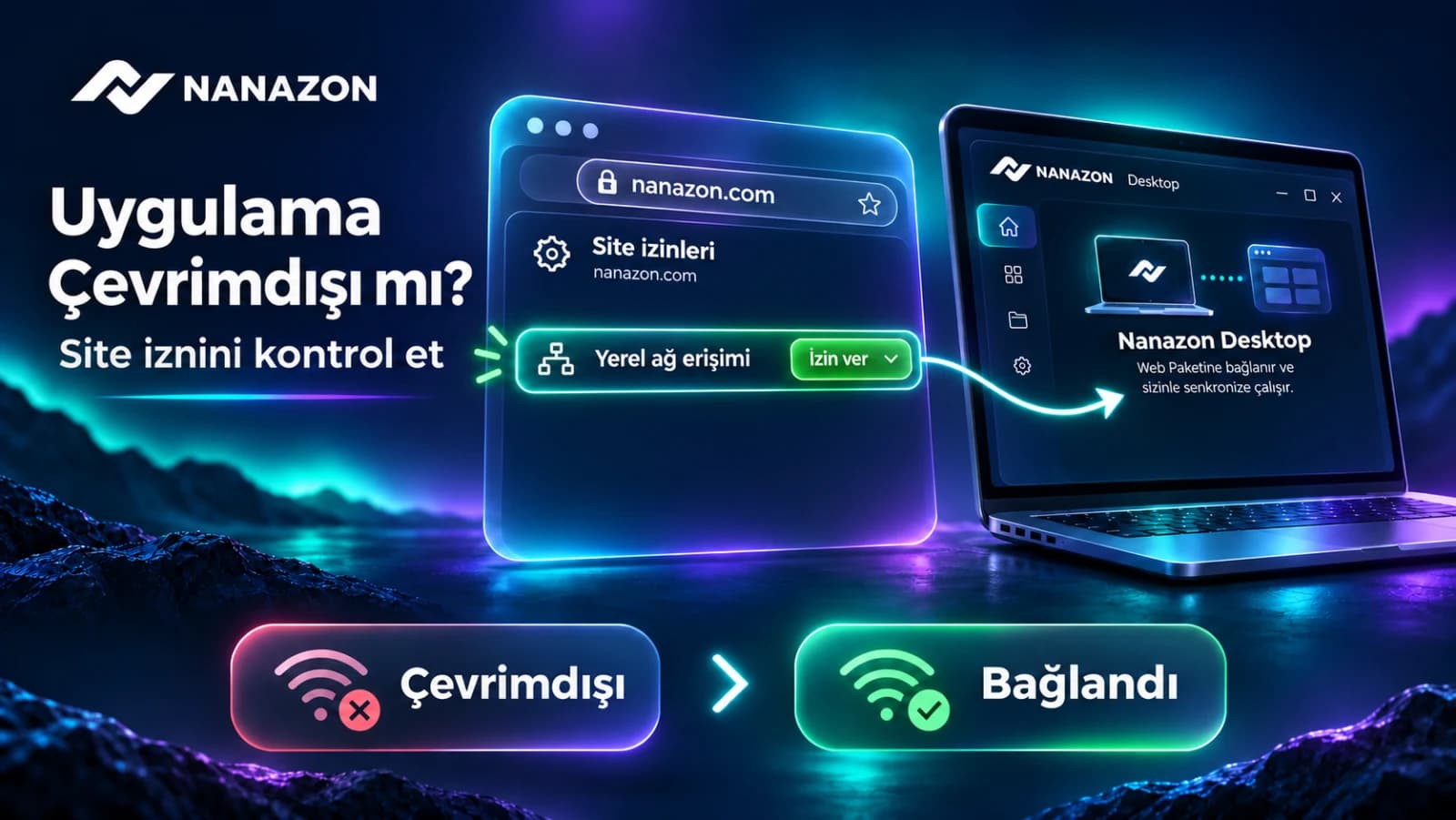
After successful sign-in, the desktop app connects to your account. Keep it running when launching a package. Check that the web panel shows the app as online. If it is not connected yet, check your internet connection and make sure you signed in to the correct account.
4. Launch the package from the website
Open My Packages / Active Orders on the Nanazon website. Click Launch or the play button on your active package card. If prompted to choose a device, select the connected computer you are using. The app opens the package browser; start working in that window.
The current desktop sign-in screen
This image was captured from the current desktop sign-in interface with empty fields. You do not need to share your email or password.
Keep these details in mind
The Launch button is in the web panel. Signing in to the desktop app does not purchase a package or start a subscription by itself. Access duration and usage conditions depend on your purchased package. The desktop app manages the product session in the browser it opens.
What should I check if a package does not open?
- Is the app running and shown as online in the panel?
- Are you using the same Nanazon account on the website and in the app?
- Is the package active and still within its access period?
- Is your internet connection working, and is the app up to date?
If the issue continues, send the error message, package name, operating system and time of the error to Nanazon support. Do not share your password. Ask for help with your existing account instead of creating another account.
Ready to get started?
Download the app · Open my packages · Browse all packages
The cover is an illustration of the workflow, rather than an exact screenshot of the application.