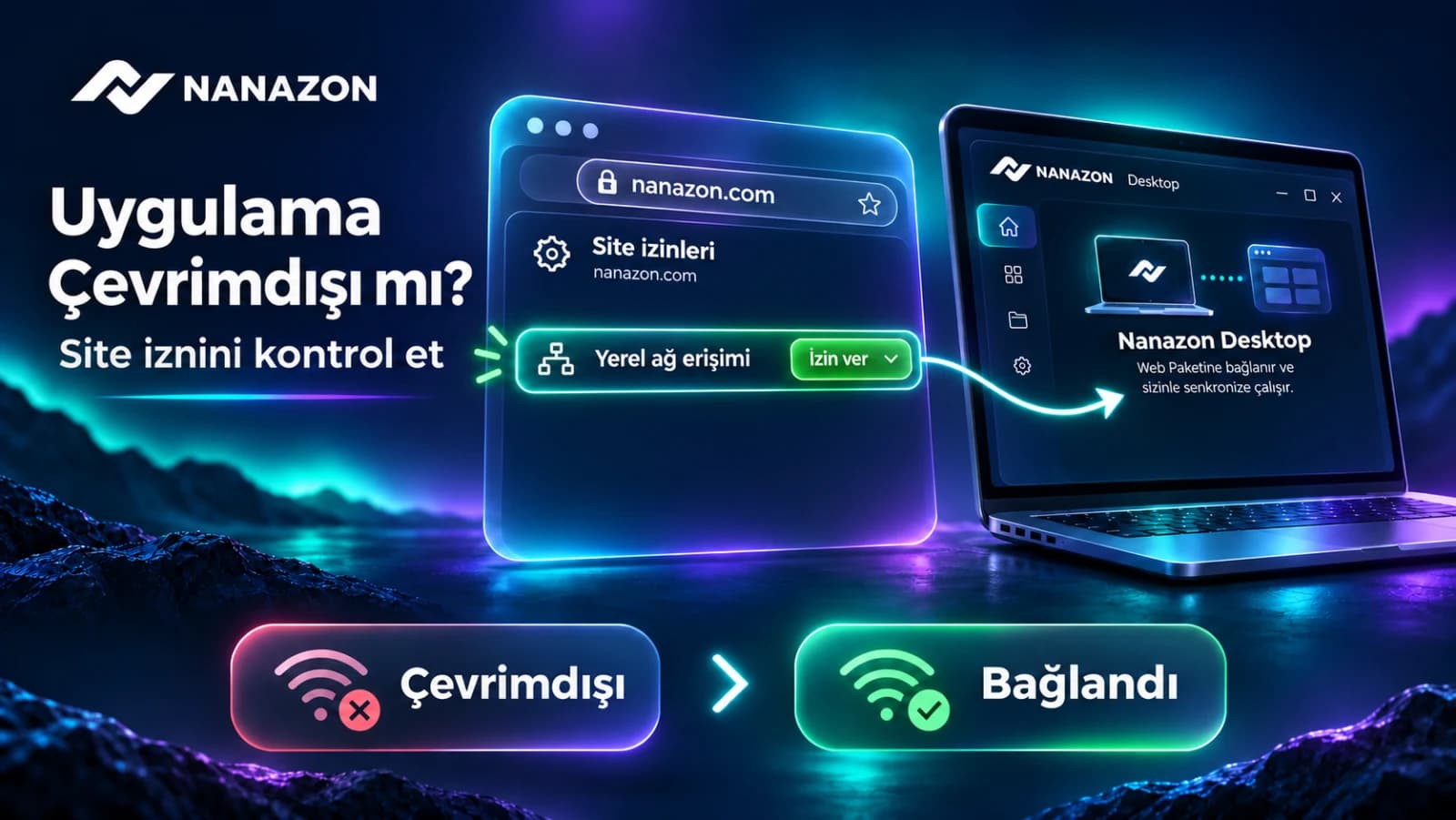
If My Packages says the app is offline while Nanazon Desktop is open, check local network access in Chrome site settings. Follow the permission and connection checks in this guide.
An open desktop app is not necessarily reachable from the website. If the browser blocks the local connection, the panel may show Application Offline. This is one possible cause; the app sign-in and internet connection also need checking.
Allow the connection in desktop Chrome
- Open https://nanazon.com on your computer.
- Click the site information / settings icon to the left of the web address.
- Open Site settings.
- Find Local network access. Some versions may describe connecting to apps or services on your device. Set the relevant local connection permission to Allow.
- Keep Nanazon Desktop running and signed in. Reload the website and check the status in My Packages.
If the Nanazon page displays a local connection permission prompt, check the site address before choosing Allow. Labels vary by browser version and language; these instructions are for desktop Chrome.
What does this permission do?
The website connects to the Nanazon app running on the same computer. Local network permission controls browser connections to local devices and services. Camera, microphone and notification permissions are not required for this step. Change only the relevant Nanazon site permission.
If the setting is missing or the app stays offline
- Check that the website and app use the same Nanazon account.
- Update the app, close it completely and reopen it, then reload the panel.
- Update Chrome. A managed work computer may restrict the setting through company policy.
- Do not change unrelated permissions or disable browser security; contact support with the error and browser version.
This permission change is not a guaranteed fix for every offline error. Share your operating system, app version and time of the issue with support, without sending your password.